
Environments
An environment is a named bundle of variables. Variables are key/value pairs (with an enabled flag and an optional secret flag) that you can drop into URLs, headers, query parameters, auth fields, and bodies.
The point of environments is to swap the same request between, say, local and staging without editing the request. Pick a different environment in the URL bar's environment picker, and the same request now hits a different server.
Creating an environment
The first time you open Rewind, a Local environment is created automatically with a single baseUrl variable. To add more:
- Open the environments sheet. You can do this from the environment picker in the URL bar (a globe icon plus the current environment's name), or with
Ctrl+K/Cmd+K→ Manage environments, or by clicking the gear icon next to the picker. The environments sheet slides in from the right. - Click the + icon in the left rail.
- Type a name in the Environment name field on the right.
The new environment is created and selected automatically.
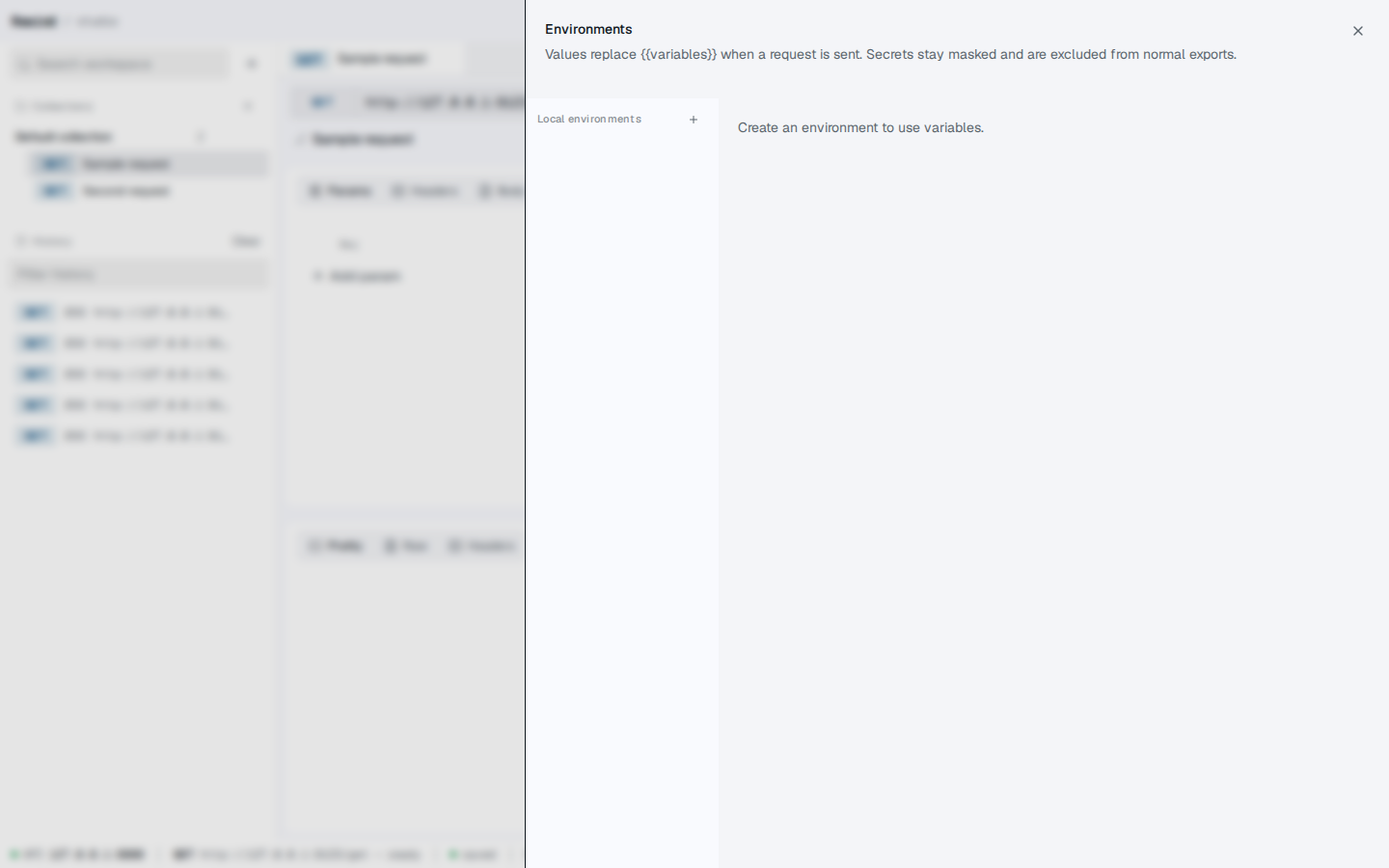
Screenshot — Environments sheet with Local selected and a baseUrl variable
The active environment
Only one environment is active at a time. The active environment is the one whose variables get substituted into {{placeholders}} when a request is sent.
The active environment:
- Is shown in the URL bar's environment picker.
- Is persisted in the browser's
localStorageunder the keyrewind.activeEnvironmentId. - Is the one whose
isActiveflag istruein the database.
To switch, click the picker in the URL bar and choose another environment, or click an environment in the left rail of the sheet.
Duplicating and deleting
In the environments sheet:
- The copy icon next to the environment name duplicates the entire environment (with all its variables). The copy is named
<original> copy. - The trash icon deletes the environment. The button is disabled if it's the only one — you can't have zero environments.
If you delete the currently active environment, Rewind activates the first remaining one.
Variables
A variable has four fields. For the full syntax and resolution rules, see Variables. For what is and isn't substituted, see Variable scope.
| Field | Meaning |
|---|---|
key | The name used in {{key}} placeholders. Required, must be unique within the environment. |
value | The value substituted in. Can be empty. |
enabled | When off, the variable is ignored during substitution. |
secret | When on, the value is masked in the UI, in history, and in normal exports. |
Click Add variable to add a row. Click the trash icon to remove one. Type into a field to edit it; changes are saved automatically after a short debounce.
The eye icon on secret variables
A secret variable's value is hidden behind a •••••••• mask by default. Click the eye icon on the right of the row to reveal it. Click again to hide it. The reveal state is per-row and resets when the sheet is closed.
Variable keys
- Allowed characters: letters, digits, underscore, hyphen, and dot.
- Whitespace inside the braces is allowed. All three of these are equivalent:txt
{{myKey}} {{ myKey }} {{ myKey }} - Keys are case-sensitive.
What gets resolved
Rewind resolves variables server-side, just before sending the request. The places it looks are:
- The URL itself
- Each header key and value
- Each query parameter key and value
- Each auth field (Bearer token, Basic username/password, API key name/value, OAuth token URL/client ID/client secret/scope/access token)
- The raw body of a Raw mode body
- Each urlencoded field
- Each multipart text field's key and value
If any {{placeholder}} in any of these places has no matching enabled variable in the active environment, the request is rejected before it leaves the server with the error "Request has unresolved variables" and a list of every missing key. The complete list of substituted fields is in Variable scope; the canonical fix is at Troubleshooting → Unresolved variables.
Tips
- Keep environment names short. They appear in the URL bar picker.
- Use
baseUrlas a convention for the root of an API. Imports from OpenAPI create this automatically. - Mark API keys, tokens, and passwords as secret so they don't leak into a normal export. For how secrets interact with auth fields, see Authentication → How secrets are handled.
- Use a separate environment for each backend you talk to. Switching is one click.
What's next?
- Variables — full syntax and resolution rules
- Variable scope — what is and isn't substituted
- Importing OpenAPI — how imports create the
baseUrlvariable