
Viewing and filtering history
Every request you send — from the request area, the collection runner, or the CLI — is recorded in history. The history list lives at the bottom of the sidebar.
What you see
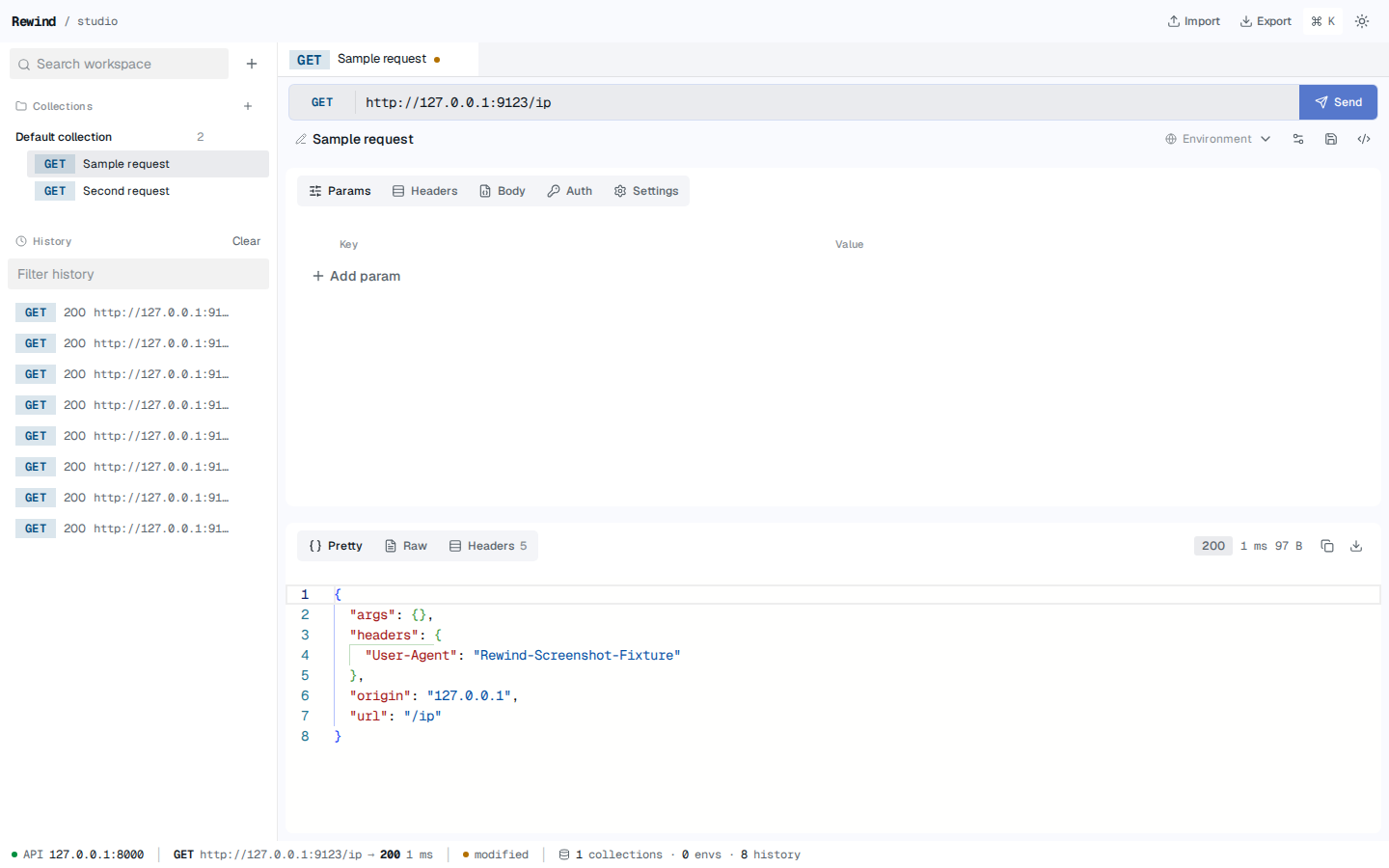
The history list shows the most recent entries first. Each row has:
- The HTTP method, color-coded by the method badge
- The status code, in green for 2xx, gray for 3xx, red for 4xx and 5xx, and the literal string
ERRif the request never got a response - The URL
- Hover buttons: a trash icon to delete just that entry
The first 50 entries load on startup. Click Load older history at the bottom of the section to fetch the next page.
Screenshot — History list with method badges, status, and URLs
Filtering
The filter input above the list does a server-side text search. It matches against the request name and the URL, case-insensitive. The search is debounced: after you stop typing for 200 ms, the new query is sent to the server.
The URL also accepts a few structured query parameters if you go through the API:
| Parameter | Effect |
|---|---|
query | Free-text match against the request name and URL |
method | Filter to one of GET, POST, PUT, PATCH, DELETE, HEAD, OPTIONS |
outcome | One of success, http_error (status ≥ 400), network_error |
collectionId | Only entries from a specific collection |
from / to | ISO timestamps for an inclusive range on createdAt |
limit | Page size, 1–250 (default 50) |
cursor | Opaque cursor from the previous page's nextCursor |
These are not exposed in the UI yet, but they are available to scripts through the history API.
What the entries contain
A history entry stores:
- The original request's method, URL, headers, query params, body, and auth
- The response status, headers, and body
- The duration and size
- The
createdAttimestamp - An
outcome(success,http_error, ornetwork_error) and, on failure, anerror: { category, message }object
The full response body is stored on disk under the workspace's data directory, up to the configured maxStoredResponseBytes limit. Beyond that, the entry is kept but the body is replaced with [binary response: N bytes] and marked storageState: "omitted_limit". The Pretty / Raw / Preview tabs in the response panel handle each storage state:
storageState | What you see |
|---|---|
stored | Full body, with a Download button. |
omitted_limit | Placeholder text and a notice; no download. |
missing | The body file is gone (e.g. a workspace was partially restored). |
The retention limit is configurable under Storage settings.
Clearing history
Click the Clear link at the top of the History section to delete every entry. This is irreversible; there is no undo. The action also runs the retention pass, so any orphaned response body files are garbage-collected.
What's next?
- Reopening from history — how an entry becomes a new request tab
- Data and storage — where the bodies are stored
- Troubleshooting — common history-related questions