
Sidebar and tabs
The sidebar on the left holds your collections and your history. The request area at the top has tabs for every open request. This page explains how they fit together.
Collections
A collection is a folder that holds folders and requests. Every saved request lives inside exactly one collection, and every folder lives inside a collection (or another folder).
Creating a collection
Click the + button next to the "Collections" header. Type a name. Done.
If you have no collections yet, the sidebar shows a dashed button that says "Create a collection to save your first request." Click that.
Adding requests and folders
From a collection's overflow menu (... button that appears on hover), you can:
- New folder — creates a folder at the collection root.
- Run collection — opens the collection runner dialog.
- Export Postman — downloads the collection as a Postman v2.1 JSON file.
- Rename, Duplicate, Delete.
Within a folder, the same overflow menu appears and gives you New subfolder, Rename, Move, and Delete.
Drag and drop
Folders and requests can be reordered and moved by dragging:
- Drag a request onto a folder to nest it inside that folder.
- Drag a folder onto another folder to nest it as a subfolder.
- Drop on the collection's root row to bring the item back to the top level.
You can only drag within a single collection. To move an item into a different collection, use the Move action in the menu.
Search
The search input at the top of the sidebar filters by collection name, request name, request URL, and HTTP method. Folders that don't contain any matching items are hidden, but the request rows remain visible.
Request tabs
Every open request gets a tab. Tabs are managed like a browser's:
- Click a tab to switch to it.
- Click the
×to close a tab. - Drag a tab to reorder it.
- A small dot in front of the name means the tab has unsaved changes.
- A small dot in a different color appears on a saved request whose server-side copy has changed since you opened it (a save conflict).
Closing a dirty tab
Closing a tab with unsaved changes opens a confirmation dialog. You can either Keep open to return to it, or Discard to throw the changes away.
Save conflict
Saved requests are versioned. If someone (or another tab) saves a newer version while you are editing, your next save is rejected with a conflict dialog that offers three choices:
- Keep editing — keep your changes in the tab, ignore the conflict for now.
- Save as new — save your edits as a brand-new request, leaving the old one alone.
- Reload stored — discard your edits and reload the latest stored version.
Persistent conflicts after a CLI save usually point to a stale rewind_session cookie — see Local session is not initialized.
Unsaved changes guard
If you try to close the browser tab or refresh while any open request has unsaved changes, the browser shows the standard "Leave site?" prompt. This only fires when at least one document is dirty.
History
The bottom of the sidebar lists every request you've sent, newest first. Each row shows the method, status, URL, and time. The most recent 50 are loaded on startup; click Load older history to fetch more.
The filter input above the list does a server-side search. It accepts any string and matches against the request name and URL. You can also pass ?method=GET&outcome=http_error style filters through the backend's history query.
Click a history entry to open it as a new tab. The captured request is loaded, and the stored response body is available for inspection.
Screenshot — History list with method badge, status, URL
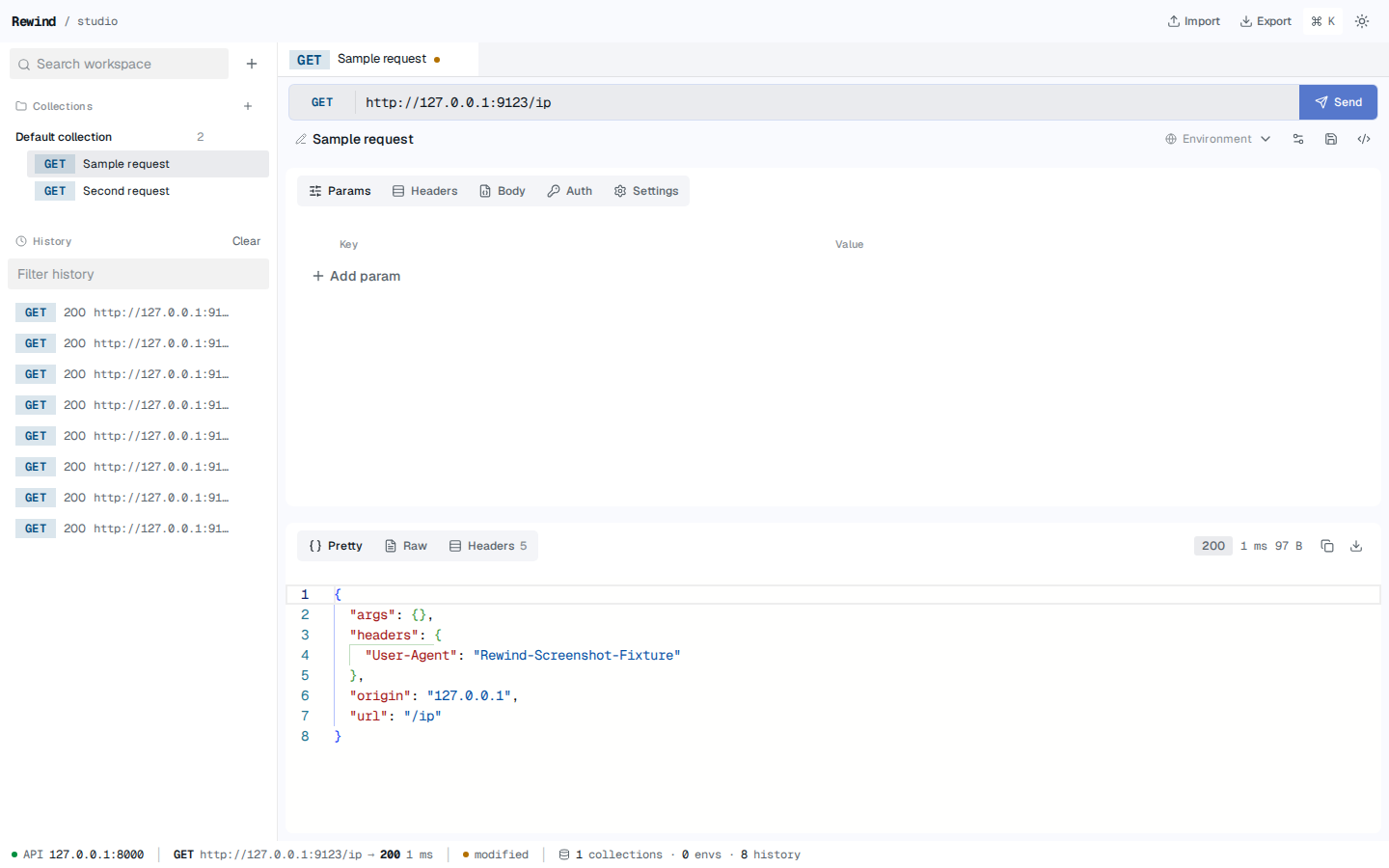
The Clear link at the top of the History section wipes every entry.
What's next?
- Save and manage your work
- Run a whole collection at once
- Browse and search past responses
- Keyboard shortcuts — every shortcut that acts on the sidebar and tabs